Lubuntu on Windows Virtual PC

For my second Linux distro to try out in Windows 7 Virtual PC I wanted to try an X-Windows based desktop distro. I chose Lubuntu for two reasons, it is very lightweight and I am somewhat familiar with recent Ubuntu installations.

Searching around the web I found that many people never get X-Windows running at greater than 800×600 resolution. There also appears to have been a problem with using 24bit color on earlier versions of Virtual PC. Having done quick test installs for a few different distros I found that X installs on WVPC end up at 800x600x24 and run OK. For my usage 800×600 is just too small and 24 bit color is not needed (I don’t expect to watch video or view/edit images in a VM). So I’ve set a target of getting X to run at 1024x768x16 for all desktop client distros that I’ll use. The larger screen size makes it practical to use multiple windows for finding solutions on the web and copying text from the web browser to a terminal or text editor to save on typing.

Another common problem I see people having is getting the middle mouse button (X button 2) and scroll wheel (X buttons 4 & 5) to work. Scrolling with the wheel and opening new Firefox tabs with a middle button click have become essential to me so this is the other major target for all my VMs. Unless I can get the mouse wheel/button and 1024×768 working I won’t consider a distro to be functional for me in WVPC.

The final problem I’ve seen many web sites mention is the use of dynamic virtual disks. A dynamic disk saves space on your host PC by keeping the file small while still allowing it to grow as needed. Most sites say to only use the fixed disk type in VPC however these sites are working with older versions of VPC, not WVPC, and older distros. The first VM I documented using was created with a dynamic disk and all of the VMs I’ve created myself work fine using a dynamic disk. I suspect the problem no longer applies to recent distros/kernels and WVPC. I did find one case where a dynamic disk did not work, I tried to expand the size of the Q&D LAMP VM by creating a larger virtual disk and using Clonezilla to copy the old disk into the new one. Clonezilla said it worked but when I looked at the size of the new dynamic disk it was clear it hadn’t worked. In that situation I had to use a fixed size virtual disk to make the cloning work.

The rest of this post is primarily a description of the steps I took to get Lubuntu 13.10 running in Windows Virtual PC. If you don’t want to perform these steps yourself you can download an archive containing the virtual disk and settings files. Simply extract the files to your virtual machines folder (usually C:UsersxxxxxxAppDataLocalMicrosoftWindows Virtual PCVirtual Machines where xxxxxx is your user name) and then run the VM. The archive, Lubuntu_13_1_upd8.7z, contains Lubuntu_13_1_upd8.vmc (settings) and Lubuntu_13_1_upd8.vhd (virtual disk). For this pre-made VHD I used these settings for names and password:  Name: W7VPC, PC Name: w7vpc-Virtual-Machine, Username: w7vpc, Password: w7vpc2014, and set it to Log in automatically.

Continue reading “Lubuntu on Windows Virtual PC”

A LAMP Server for Windows Virtual PC

My first Linux VM was a very easy one to setup because the setup had already been done. It’s a  Downloadable Quick & Dirty LAMP Server from Tim Wray.

While it works to simply extract out the settings and virtual hard drive files and run the VM, I noticed that the setting XML file is substantially different for Windows Virtual PC than it was for Microsoft Virtual PC 2007. This includes the amount of video RAM so I decided to create a new settings file and, with Tim’s great instructions on how to fix the one problem that crops up, it is painless. The following instructions assume you know how to use basic Linux commands as well as the openSUSE text mode Yast configuration program.

  1. Extract the OpenSUSE 10.2 LAMP Server (PHP 5.2.11 MySQL 5).vhd file to the location for your installation. Should be C:UsersxxxxxxAppDataLocalMicrosoftWindows Virtual PCVirtual Machines where xxxxxx is your user name.
  2. Open Windows Virtual PC.
    Capture00
    Continue reading “A LAMP Server for Windows Virtual PC”

Linux as a Guest OS in Windows Virtual PC

To be absolutely clear what I’ll be writing about in this and future posts is the Windows 7 Pro (and higher) add-on Windows Virtual PC (WVPC). It is a descendant of the general purpose Microsoft Virtual PC but is different in that it was modified specifically to facilitate the Win7 XP Mode feature. Basically Microsoft intends WVPC to allow the running of XP, Vista and Windows 7 guests on a Windows 7 host, they do not support any other guest OSs. However they did not remove the capability to run other OSs they simply did not update some useful features for other OSs and they removed the integration components for Windows versions older than XP.

Getting any Linux distro setup on WVPC is not something the average user should attempt. If you want to try out different Linux distros and have all their features work you should definitely use different virtualization software. VirtualBox and VMWare are much easier to use and will let you properly evaluate distros.

I decided to play around with Linux on WVPC for a number of reasons.

  1. I already use it for XP Mode and when an app is running it isn’t obvious that VPC is running. If I had another virtualization platform installed I could accidentally run it at the same time which could crash Windows badly. So to be safe only VPC will ever be installed on my Win7 PC.
  2. I occasionally need to run software that is only available on Linux e.g. the libpst library
  3. Having played around with Linux on and off since 1998 I actually find it fun to dig into the OS guts to get it working on unsupported hardware. I still remember the thrill of compiling a newer version of the kernel for the first time and it making a new system work.

In later posts I’ll detail how I got specific distros running but for now I just want to cover a few generic tips. The first tip is don’t expect to find a lot of useful information on the net. Most discussion threads about this topic quickly end with the person asking for help being convinced to give up and just use VirtualBox or VMWare. Most of the blog posts you’ll see are for Microsoft Virtual PC 2004 or 2007, products that officially supported Linux as a guest OS so they often are not applicable to WVPC.

Tip number two is lower your expectations, don’t expect to run X-Windows in high resolution, watch video or listen to music. Much of the problem stems from the fact that there are no integration components supplied for newer Linux distros. If you look in  “C:\Program Files\Microsoft Virtual Server\Virtual Machine Additions” you’ll see that the old additions for Linux are there but since they have not been updated since 2007 they are basically useless.

The third tip is to expect that you will need to add kernel boot parameters to get any install going reliably and then you may need to manually add some of them to the GRUB configuration after a successful install. In my playing around so far I have found that noreplace-paravirt, i8042.noloop and clocksource=pit (clock=pit for older kernels) are the minimum. In some cases you may also need a vga=788 option as well. There is an old blog post from 2009 that explains the first options fairly well. In addition to what is said in that old post about the clocksource option, Ben Armstrong of Microsoft posted in 2006 about how the clock option prevents a key repeat problem. For even greater detail on the clocksource option read this Microsoft Knowledge Base article.

The next tip is only if you are a die hard numeric keypad user like me. I hate when Num Lock gets turned off, an accountant at work showed me how much more efficient data entry is with the keypad way back in the 1980s. After all this time my hand instantly goes to the keypad anytime I’m entering more than a couple digits so I find I just can’t live without it. To ensure the Num Lock stays on you have to set the VM BIOS option and usually set it in the OS as well. To set the BIOS option, press the Delete key as soon as the VM window opens to access the VM BIOS settings. Change the Advanced-Boot Setting Configuration-Bootup Num-Lock setting to On. Then press F10 to save and exit the BIOS settings.
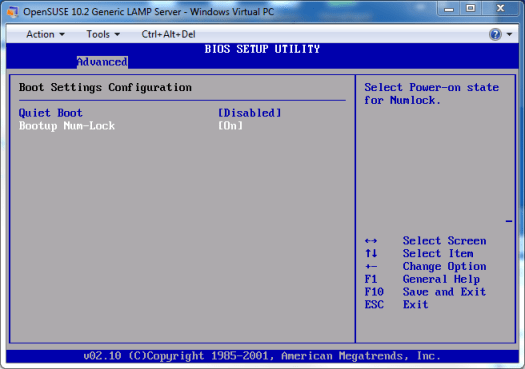
Capture04

A final note on Num Lock, some guest OSs will toggle Num Lock on/off during the boot process. If the VM window looses focus during this time the Num Lock state may end up set incorrectly.

The last tip is about WVPC video RAM, the default setting when you create a new VM is 16 meg, the maximum supported, but it can be decreased by manually editing the XML file if you wish to save on host RAM. Although the VM has 16M, so far I’ve found that the amount detected by Linux is never 16MB. Some query mechanisms have returned 64M but all the ones that count always seem to detect only 4MB. I suspect the only way to resolve this would be to write a custom display driver, a task that presently I don’t think is worth the effort.
Blogroll is back

The blogroll on the left side has been empty for a long while. It used to be automatically updated via a  Google Reader feature but since the demise of Reader it stopped working. I hadn’t found any way to replace it with another automated system so today I manually created a blogroll. To avoid typing too much I exported my feeds from Feedly as OPML then converted that to a CSV file using this utility web service. Finally I re-arranged, cleaned up and deleted the extra data from the CSV in LibreOffice Calc and added a formula to make <a href> links out of the names and urls. Then I simply pasted the resulting list into a WordPress text widget.

Windows 7 Virtual PC Problem Solved

With the loss of my XP box I decided it was time to try out Windows Virtual PC and the XP Mode included in Win 7 Pro. It worked great so now I won’t need to resort to using my very old Win2K box to run a couple old CAD applications that won’t install in Win7.

After playing around with XP Mode a bit I decided to get adventurous and play around with getting other OSs running in Virtual PC. I have no idea how it happened but suddenly the Virtual Machines folder lost all the special buttons. Losing the Settings button was no big deal since I could simply left click and choose settings. However I couldn’t see a workaround for the loss of the Create virtual machine button. Fortunately Ben Armstrong had posted three solutions for the problem back in 2009.

Windows 8 Power User WiFi Tips

I purchased a netbook with Windows 8 last year and started using my WiFi more frequently. Windows 8 does not have the WiFi Profile manager like in previous versions of Windows but The Windows Club has a solution, WiFi Profile Manager 8, it works great.

With my frequent usage I also was getting annoyed with occasional drop outs. I noticed when the drop outs where happening I’d see neighbors access points show up in my listings which slowed me down by cluttering up the network connection list in the charms bar. Using the command line tool netsh I was able to fix both problems. First I used the

netsh wlan show networks mode=bssid

command to examine the connections, sure enough the nearest neighbor was using channel 6 the same as me and when the conditions are right his signal gets strong at my place. The other neighbor was on channel 11 so I changed my access point to use channel 1 and now I never drop out. FYI; there is major overlap in WiFi channels so you need to be five channels apart to eliminate all interference.

The netsh command tool also allowed me to block my neighbors access points from showing up in my WiFi list.

netsh wlan add filter permission=block ssid=neighbors_ssid networktype=infrastructure

References:

Netsh Commands

Showing All Your Neighbor’s WiFi Profile

How To Block A Computer From Accessing To A Specific Wireless Network

USB Drive Letters and Media Center Annoyances

First the Media Center Annoyance, whenever I plug in a thumb drive or flash card, Media Center would start reading it and sometimes would end up blocking me from ejecting the device. I’d been trying to figure out how to stop this from happening for a long time with no luck. One day I decided to search around for a solution and I found it on this page (the third post on the page).

I’ve been switching to USB connected external drives for data backup ever since I started doing a bunch of video editing because the giant files would overwhelm my NAS that holds the backups for my other projects. An annoying problem was that the drive letters assigned by Windows would sometimes vary and other times would get locked in to drive letter. For backup purposes I need to have the drive letters be consistent and I found the Holy Grail of USB drive letter management, USB Drive Letter Manager for Windows (USBDLM) by Uwe Sieber. It is definitely not for the average PC user but if you’ve got the skills it is a fantastic little service. I need to check out the other little utilities and services on the web site. I especially need to check out the COM-Port manager it will likely save me from having to use the COM port deletion technique from my previous blog post (note to self, do this before buying that 8 port adapter).

Windows 7 Desktop Shortcuts and USB COM port problems solved

A while back (I’ve been too busy to blog much for almost a year) I was puzzled to find some of my desktop shortcuts disappearing seemingly randomly. A page in the Microsoft Knowledge base explained why it was happening. In my particular case the shortcuts where pointing to network shares and documents and neither of the proposed solutions was right for me. Then in a flash of inspiration I realized that if I put those shortcuts inside of a folder on the desktop the System Maintenance troubleshooter doesn’t touch them.

My old XP box finally died so I had to move my USB to EIA-232 adaptors to my Win 7 box. Shuffling the devices around between various USB ports and hubs I saw the old problem of new COM port numbers being assigned to the adaptor with each USB port change. This of course rapidly leads to having to deal with COM10+. I vaguely remembered that there was a way to remove the extra ports so that once the adaptors where in their final USB destinations they’d have the low numbers I like. Searching around I found this excellent page with instructions.

See Also:
Device Manager does not display devices that are not connected to the Windows XP-based computer, from Microsfot
How to Find Hidden COM Ports, from Adafruit
USBDeview, from NirSoft

3/16/2015 Update: Updated the rttycontesting.com URL, added other reference URLS