I’ve been setting up my new Windows PC during the past month. I found a way to thoroughly confuse Windows programs, setup a user account then a few days later change the user name. Now the user name and documents and settings directory name no longer match and some programs get confused and crash. The cure is to delete the user and create a new one.
Internet Explorer 7 upgrade issue
After letting Windows Update install IE7 I saw a security warning every time I ran a program located on my LAN. This site explains why and how to stop it:
Open file – Security Warning appears when you run a file from network share
CF Card data rescue
I have not had many problems with Compact Flash cards since I started using them in 2000. One of my older 1G cards failed to read on a extremely hot day (>100F) a couple of years back but, I had backups of the data so it wasn’t a big deal.
Yesterday I had a failure that I think I caused myself. I suspect I had my trusty old Kodak DC-215’s power ON when I pulled out the 6 year old 32M Lexar CF card. When I put the card in a PC reader WinXP offered to format the card, yikes. I then tried it in my Jornada 720 and the camera with the same result.
This time the card data had no backup because it was pictures from a day hike with my brother and nieces. I really wanted to recover these photos so I started checking around the net for information on CF card failures and data recovery. I figured that good old hard disk recovery techniques should work since a CF card is organized the same as a hard disk. This article gives the essential information and I was about to do it when I decided to try out some of the applications designed to automatically recover CF data.
I tried out all of these programs, BadCopy, Davory, Digital Picture Recovery, Flash File Recovery, MediaRECOVER, mmCARD Recovery, PhotoRescue and, Smart Recovery.
The only program that was even close to showing me that it could recover the data was PhotoRescue. PhotoRescue did not show thumbnails for the files probably because they were in FlashPix (.FPX) file format. The files that PhotoRescue said it could recover were of the right size range for my photos so I decided to buy PhotoRescue and see if it would work.
PhotoRescue recovered every one of the photos and even recovered some long ago deleted photos. I highly recommend PhotoRescue, at only $30 it is a rare bargain in data recovery software.
A final note, after recovering the photos I let the camera re-format the CF card. To my surprise, after the re-format, all the photos were now accessible on the card! This indicates to me that the problem was fairly simple FAT corruption and that the camera’s format firmware is smart enough to fix some FAT problems on its own. If my suspicion of a FAT corruption is correct then why didn’t any of the other software that I tried even come close to recovering the data?
Acrobat Reader and alternatives
Acrobat Reader has become less useful and efficient for me since version 4. The latest version has driven me nuts so I started looking for alternatives.
Id heard many good reviews of Foxit Reader stating that it worked well and was completely free. So I looked at its web site and read the EULA to make sure I could use it (I do commercial work on most of the PC’s I use). Everything looked OK so I was about to click the download link when I decided I should look at the rest of the page before clicking the download link. I found a show stopper statement in the bottom half of the page free for non-commercial use. I contacted the company and they confirmed that they don’t want me to use it because of the non-commercial clause. Technically I could go ahead and use it in my commercial situation because the EULA makes no such provision and the clause is hidden from view on the web site. But I will respect the companies intent and not use it.
Next I checked out eXPert PDF reader and it, like Adobe’s reader, is free to use even in a commercial situation. However after trying out eXPert PDF reader I did not like it.
That’s when I remembered one of the most useful web sites on the Internet OldVersion.com. Looking at their list of old versions for Acrobat reader youll see a big increase in download size as the versions increase. So, I grabbed Acrobat Reader 4.05 (5.5 MB) and installed it without removing the newer version of Acrobat Reader. As far as I can see, there is no problem with having multiple versions of Acrobat installed. By using the WinXP Open With context menu I can even choose which version of Acrobat to use.
Tool tips hiding behind the task bar
A couple months ago, I was working on an application that sits in the task bar tray and shows some data as a tool tip when suddenly, for no apparent reason, the tool tips started popping up behind the task bar.
So, I searched around and found this page that explains this intermittent XP aggravation:
How to: Fix Tooltips hide behind taskbar
Another Outlook annoyance
Since I wrote my last entry I’ve been experiencing another annoying Outlook problem. Ever since I started using OL2003 at the main office, the OL2000 copies I use at at my home office won’t terminate. I have two copies of Outlook2K one on Win2KPro and the other on WinXpPro. On both of them when I close OL its window terminates but the process remains.
I’ve scoured the net for clues to the cause of the hanging but to date I’ve not found a solution. Since the only change has been using OL03 at work, I think that even though I told OL03 to leave the PST file as 2000 format, OL03 has changed something in the file that OL2K doesn’t like.
I suspect that if I buy two copies of OL03 to upgrade the OL2k PC’s the problem will go away. However Microsoft is not encouraging me to upgrade because according to their web site an upgrade is not available and a new license is $109 US. There is no way Micro$oft is getting $218 more out of me for Outlook licenses. I could also change the Office03 install back to Office2K but I really want to avoid that since most of the other PC’s there are using 03.
Since I won’t pay and I haven’t found a solution, I have just been terminating OL with Task Manager whenever I close it. Today while searching again for solutions I found a program that will make living with this problem less annoying. KnockOut is a great little program to make terminating Outlook and Word more convenient. Thank you Jensen Harris for making this handy program.
Outlook 2003 Annoyances and fixes
I was given a new PC at work this week. It has Microsoft Office 2003 which I have been avoiding using for years. I first used Office 95 and moved up through 97 to 2000 as each was released. When Office XP and 2003 came out I looked them over but found there to be no useful features for me vs. 2000 so I passed on the upgrades. The majority of changes in the new versions are UI changes that for me typically cause more down time learning than they are worth. Of course being an engineer I do most of my work in text editors and CAD programs so I tend to prefer very basic easy to use office applications (IMHO, AmiPro 3.0 was the best word processor ever).
The one Microsoft Office application that I use all the time is Outlook. Outlook 2000, and 97 before it, have worked very well for me. I rely on the e-mail, calendar and contact functions ever day and I know how to fix its occasional quirky actions. Over all these years using OL2000 I’ve become very efficient in using a particular configuration for Outlook. With the default Outlook 2003 configuration I was lost so, I set about changing the configurations to try and make it the way I like. I did get it setup to my preference but along the way I hit a number of annoying roadblocks.
The first problem I hit was e-mail account setup. I have seven e-mail accounts setup that I export from OL2K to IAF files for configuring the three workstations I use Outlook on. I was shocked that Microsoft had removed IAF file import from Outlook. Not wanting to manually enter all that configuration information I searched the net and found the solution here.
Import IAF configuration file to an Outlook 2003 / Outlook XP
I just cant fathom why the heck Microsoft would take this feature out of their flagship e-mail product but keep it in their free product. I guess I’ll just not upgrade my other workstations so that I’ll only have to use the IAF support in OE on that one workstation.
The next very annoying problem is not a Microsoft caused annoyance but rather an Adobe Acrobat created annoyance. IT also put the full Acrobat 7 program on the new PC. This put a PDF toolbar and top level menu in Outlook. The annoying part is that when you remove them in Outlook they come right back when you restart OL, screwing up the toolbar layout in the process. I found a number of solutions on the net (sorry lost the links) but the best one is to simply run the add/remove process for Acrobat and uninstall the Outlook integration option. I actually removed all the integration options, I guess Im old fashioned but to me it’s easiest to just use a PDF printer driver.
I like to have OL open up with Outlook Today. Well OL2003 has an annoying bug when you simply copy over an OL2000 pst file. Heres the solution from Outlook 2003 – Today Screen Problem
Go to the Outlook Today screen.
Right click on Personal Folders – Outlook Today.
Select Properties for Outlook Today.
Go to the Home Page Tab.
Click Restore Defaults.
The new default calendar view was not to my liking because it was missing the two nice navigation calendars I’m used to. To get them back select view Taskpad and move the window divider until you can see the two navigation months.
The next item I tried to change back to 2000 standard was to eliminate the icon that 2003 puts in the system tray. It turns out there is no way to remove the icon so I’ll just have to live with it. On an XP system you can hide the icon, here’s the Microsoft info: Hide the Outlook icon in the notification area of the taskbar I hate the hide function so I didn’t bother trying it.
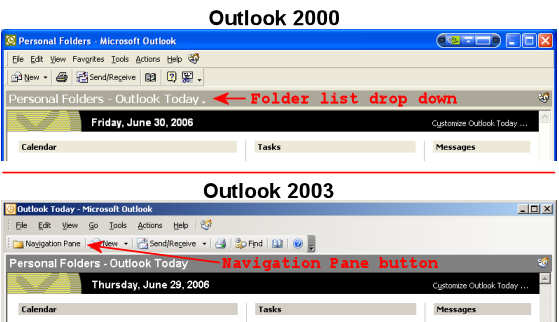
The last thing that bugged me was their removal of the built-in folder list drop down with pinning. I worked around the missing button by adding a Navigation Pane button just above where the old button was. This is a toggle button so for myself it is just as functional as the old button. You’ll get a better idea of what I did in this 2000 vs. 2003 picture.
Another annoyance is one the IT guys fixed before giving me the PC. The default setup causes Messenger to open with Outlook. I think IT did a registry hack to stop Messenger but in my searches I discovered this site with a nice clean way to fix this annoyance. Removing Outlook 2003s Dependence on Windows Messenger If you go to the Options Form and select the Other tab, the last section is labeled Person Names. If you uncheck the Enable the Person Names Smart Tag option, Outlook will no longer mysteriously start up Windows Messenger.
There is one feature in OL2003 that I think is great! I set it to only show e-mail as plain text, if only they’d had this feature back in 98 I would have avoided the one and only virus infection I’ve had since starting to use PC’s in 1982.
Why the DMCA is a problem
A recent EFF newsletter pointed me to a great article in the IEEE Spectrum magazine Death by DMCA. This 4 page article is the best summary of DMCA related problems that I have seen. IMHO, the DMCA is the worst piece of IP legislation in US history.
Windows update verclsid.exe problem
Well Microsoft has done it again, the latest Windows updates are causing problems for many users.
Not all PC’s have problems after update (I’ve seen reports ranging from 0 in 80, up to 2 for 2). I just installed the updates and they caused a 16 second pause for right click context menus. This delay would likely be up to a minute on sub-Gigahertz PC’s and would make a lot of people think that Windows is hung. Un-installing the 908531 update cured the problem for me.
Partial list of symptoms and fixes from MS
In addition to these symptoms others have reported:
- Can’t “Save As” any file from MS Office.
- Can’t run Outlook Express, IE, Windows picture+fax viewer, PaintShopProX, Quick View Plus.
- Can’t activate the start button via keyboard (but by mouse click OK).
- Can’t activate the start button by any means.
- Hang for no apparent reason right-clicking on the desktop.
- Typing a URL in the IE6 address bar, it does not auto complete.
- Using explorer to look at any folder, on closing it launches another instance of explorer, but it is blank.
In addition to the fixes in the MS KB article others have had success with:
- Renaming verclsid.EXE to verclsid.OLD it is located in %SystemRoot%System32.
- Un-install security update 908531.
Note that Windows warns of possible update conflicts when you start the un-install however I, and others on the net, have so far seen no problems from ignoring the warning.
Explorer using 100% of CPU time in WinXP
Last Sunday I started working on some wedding video editing and transfer to DVD for a friend. Right after I finished rendering the first 1.5Gig MPEG I noticed Windows Explorer using 100% of the CPU resources for a minute or more when I opened the directory with the large file.
I started playing around and found that all my folders with large AVI or MPEG files caused this problem. The problem was especially bad in one folder that has an 18Gig AVI capture file.
Searching around the net for information on this problem I found a number of forums with people having the same problem. The information led me to a Microsoft Knowledge base article with details about the problem. The culprit is Shmedia.dll analyzing the file contents to let Explorer display media specific information about the file. The Microsoft article states that the problem was fixed in SP2 but, since my PC is fully patched I think the problem has come back. Also the article says the problem is only with AVI files but I was seeing it with MPEG files as well.
There are a few different solutions posted around the net for the AVI problem. Looking at the various solutions I chose to use the CLSID renaming method as detailed at pc-speed-up.com.
As I expected, renaming the CLSID to:
{-87D62D94-71B3-4b9a-9489-5FE6850DC73E}
fixed the problem with AVI files but did not help with the MPEG files.
I looked in the registry to find out what CLSID provided the hook to Shmedia.dll for MPEG files. I found that
HKEY_CLASSES_ROOT CLSID{c5a40261-cd64-4ccf-84cb-c394da41d590}
is the key for MPEG’s. I renamed the key to:
{-c5a40261-cd64-4ccf-84cb-c394da41d590}
and it fixed the problem for MPEG’s. I hope this helps someone else having this very frustrating Windows problem.
WARNING – manually editing the registry is extremely dangerous if you are not careful you may have to re-install windows to get the PC working again. You have been warned so, don’t complain to me if you screw up your PC by following my information.
 Paul Hutchinson's Blog